

How to use split-screen on your Android phone
Translated from Spanish, summarized and contextualized by DistantNews.
At a glance
Explainer
Official statement
Context piece
- Android phones feature a split-screen function allowing users to run two applications simultaneously.
- This feature enables multitasking, such as messaging while watching a video or taking notes from a webpage.
- Users can customize the split-screen by adjusting app sizes, pre-selecting app pairs, expanding individual apps, or closing one to let the other take over the full screen.
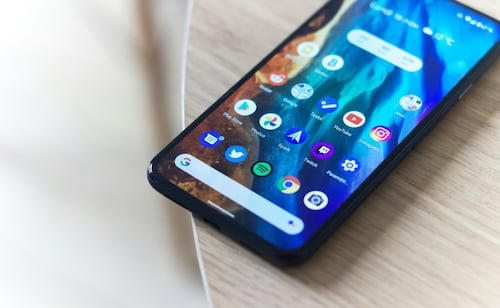
Modern Android smartphones offer a split-screen feature, enabling users to operate two applications concurrently. This functionality enhances productivity by allowing simultaneous tasks, like composing a message while viewing a video or referencing a webpage while taking notes.
To activate split-screen, users first open the desired applications. Then, by pressing the three lines representing recent apps or swiping up from the bottom of the screen, they access the recent apps menu. Tapping the icon of the first application reveals an option to "Open in split screen view." Selecting a second application automatically places it in the lower portion of the screen.
Users can personalize the split-screen experience. The dividing line between apps can be dragged to adjust the size of each window. Additionally, users can pre-select frequently used app pairs for quicker access. The interface also allows for expanding a single app to full screen or closing one app, causing the remaining one to enlarge.
This versatile tool is integrated into devices from manufacturers such as Samsung, LG, Motorola, Oppo, Xiaomi, and Google Pixel, among others. It proves particularly useful for activities like watching movies or series while simultaneously using messaging or social media applications.
DistantNews Editorial
Originally published by El Universal in Spanish. Translated, summarized, and contextualized by our editorial team with added local perspective. Read our editorial standards.
More Stories


From Our Blog

What Press Freedom Means for the News You Read

What Gets Lost (and Found) When News Is Translated

The Critical Role of Diaspora Media in Global News

What Travellers Should Know About Countries with Restricted Press

A Digital Nomad's Guide to Following Local News
