
No Need to Install Separate Apps? How to Create PDF Files Using the 'Print' Menu
Translated from Korean, summarized and contextualized by DistantNews.
At a glance
Explainer
Sources not specified
Context piece
- PDF files are increasingly used for documents, portfolios, and certificates due to their ability to maintain formatting across devices.
- While dedicated software or 'Save as PDF' functions are common, users can create PDFs using the 'Print' function in various applications without installing extra programs.
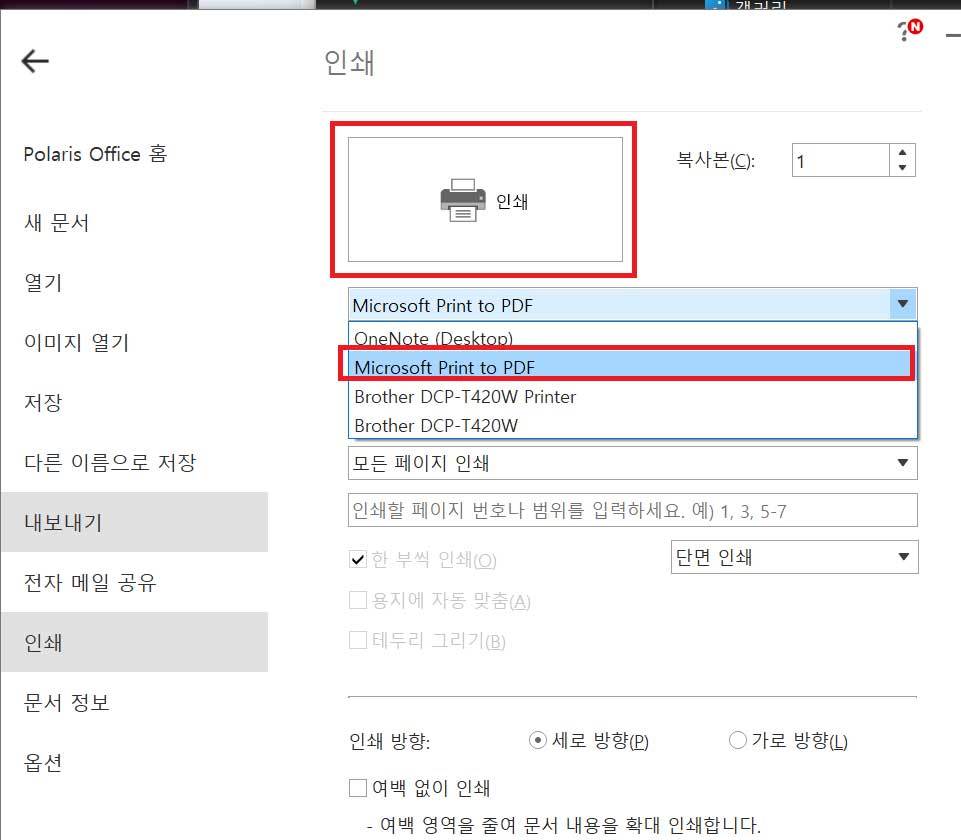
- This method works across different platforms, including web browsers and document viewers, by utilizing virtual printers like 'Microsoft Print to PDF' on Windows.
PDF files are becoming indispensable for everything from work documents to portfolios and official certificates. Their primary advantage lies in preserving fonts and layouts, ensuring documents appear identical regardless of the device or operating system used.
Many users typically resort to installing dedicated software like Adobe Acrobat or using the 'Save as PDF' feature in office suites such as Word or Excel. Others opt for online conversion sites. However, a less-known but highly convenient method allows users to create PDF files directly from any application with a 'Print' function, such as document viewers or web browsers, without needing to install any additional software.
For Windows users, this is easily achieved through a built-in virtual printer called 'Microsoft Print to PDF.' This feature acts like a regular printer but instead of producing a physical copy, it generates a PDF file of the document you are viewing or editing. This bypasses the need for specialized PDF creation tools, streamlining the process for everyday document handling.
DistantNews Editorial
Originally published by Dong-A Ilbo in Korean. Translated, summarized, and contextualized by our editorial team with added local perspective. Read our editorial standards.
More Stories



From Our Blog

What Gets Lost (and Found) When News Is Translated

The Critical Role of Diaspora Media in Global News

What Travellers Should Know About Countries with Restricted Press

A Digital Nomad's Guide to Following Local News

How the Same Story Looks Different in Different Countries
